If IPTV stutters on Wi-Fi but plays perfectly on a cable, your router isn't broken – the wireless link to the TV is the weak point. These are the settings and changes that help most on the hubs UK broadband providers supply. Menu names differ between models, so treat the paths below as a guide.
1. Log in to your hub
Most hubs have an admin page in the browser – often 192.168.1.254 (BT, EE), 192.168.0.1 (Virgin Media) or 192.168.0.1 / 192.168.1.1 on other models. The admin password is usually printed on the hub. Install any firmware update offered; providers often push them automatically.
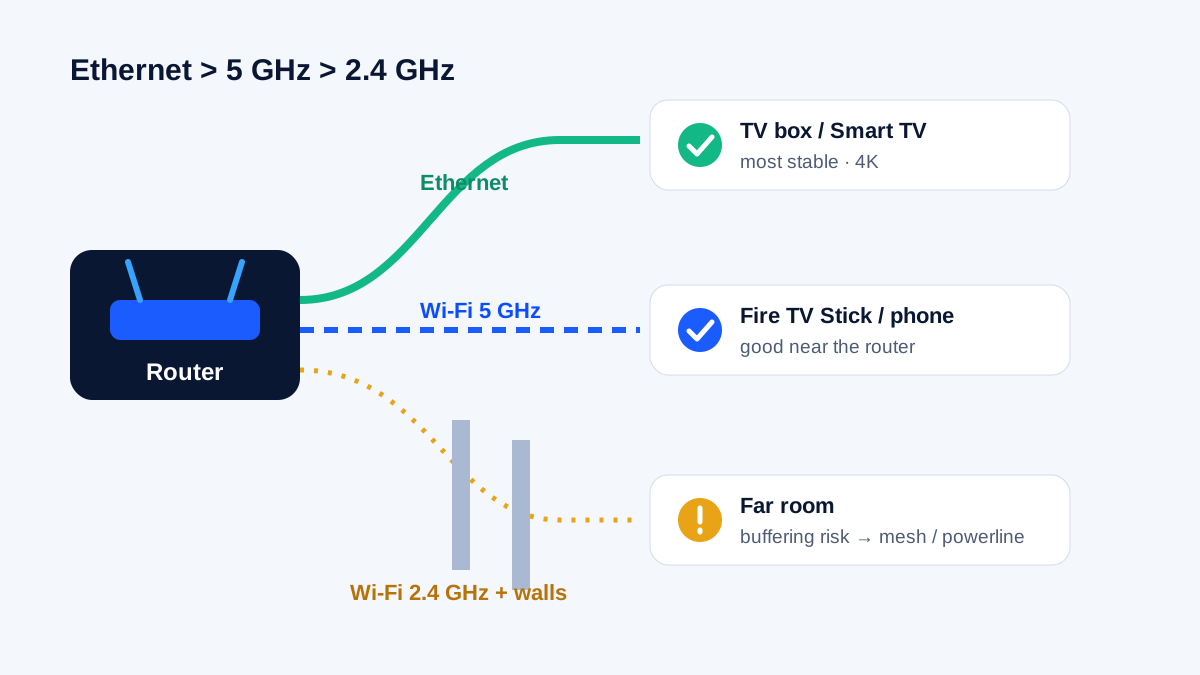
2. Get the TV onto 5 GHz
Many hubs (BT Smart Hub, Virgin Media Hub, Sky and EE hubs) show both bands under a single network name and decide for you. That usually works, but a TV at the edge of coverage can end up stuck on 2.4 GHz.
- Check which band the TV uses – the hub's device list often shows it.
- If needed, split the bands in the advanced Wi-Fi settings (look for an option like "separate bands" or "split networks") and connect the TV to the 5 GHz name.
3. Choose a quieter channel
Neighbours' networks compete with yours, especially on 2.4 GHz. Automatic channel selection is usually best; if your Wi-Fi drops at the same time every evening, try a fixed channel and watch for a week.
4. Give the TV priority (QoS)
Some hubs and many third-party routers offer QoS or device prioritisation. If yours does, prioritise the TV, stick or box so a download elsewhere doesn't starve the stream.
5. Placement matters more than you think
- Put the hub high and in the open – not in a cupboard, behind the TV or on the floor.
- Keep it away from microwaves, cordless phone bases and fish tanks (water absorbs Wi-Fi).
- A Firestick behind the TV benefits from the HDMI extender in the box – see the Firestick setup guide.
6. Bring the network closer: mesh or powerline
| Option | Good for | Watch out for |
|---|---|---|
| Ethernet cable | the steadiest picture, 4K and sport | running the cable |
| Mesh discs / extenders (BT, Virgin Media, Sky and EE offer their own) | large homes, upstairs rooms | place them halfway, not next to the TV |
| Powerline adapters | thick walls, extensions | performance depends on your wiring |
7. Things you don't need to change
- Port forwarding – IPTV streams are outgoing connections and work without it.
- IPTV/multicast options – some hubs have settings for providers' own multicast TV. Independent services such as KIVARO send each viewer a normal unicast stream, so those options don't affect it.
- DNS servers – leave the defaults unless your provider tells you otherwise.
Still buffering?
Run the full diagnosis in IPTV buffering fixes and measure the speed on the TV itself – targets are in internet speed for IPTV. On a Firestick, also see IPTV not working on Firestick.
Frequently asked questions
Should I buy a new router?
Usually not. A hub that supports 5 GHz is fine; placement, a cable or mesh help far more than a new box.
Is Wi-Fi 6 better for IPTV?
It handles busy homes better, but only if both the router and the TV or stick support it. A cable still beats any Wi-Fi.
My provider's TV box works fine – why not IPTV?
Providers' TV boxes are often wired or use their own managed network. Put your IPTV device on the same footing – cable or strong 5 GHz – and the difference usually disappears.